You are here for one of two reasons.
Either an email you were waiting for landed in your spam folder, and you missed it. Or your emails are landing in someone else’s spam folder, and you have no idea why.
Both problems have real fixes. Some take 2 minutes. Some take a week. This guide covers how to stop emails from going to spam on both sides, starting with the quick wins and moving into the technical setup that actually keeps your emails out of spam long-term.
Key Notes
- Missing an email in your spam folder? Mark it as Not Spam, add the sender to your contacts, and set up a filter so it never happens again.
- Sending emails that land in spam? Start with domain authentication (SPF, DKIM, DMARC), keep your list clean, avoid spammy language, and don’t spike your send volume overnight.
- Running cold outreach for a business? Use a separate sending domain, warm it up slowly, and keep your spam complaint rate under 0.1%. Google and Yahoo enforce this threshold for bulk senders.
Why Did Email Land in Spam?
Before fixing anything, it helps to know what a spam filter is actually looking at. It’s not one rule. It’s a stack of checks, run in a specific order.
Most modern filters, including Gmail’s, evaluate email in 4 layers:
- Authentication – Does this email pass SPF, DKIM, and DMARC checks?
- Reputation – Does this domain or IP have a history of sending wanted mail?
- Content – Does the message contain spam patterns, suspicious links, or manipulated text?
- Engagement – Do recipients open, reply to, and interact with this sender’s mail, or delete and ignore it?
If an email fails early in this order, it rarely gets a fair shot at the later checks.
Gmail’s 4-layer model, briefly
Gmail scans content using AI models, including a system called RETVec, which checks for spam patterns, manipulated text, and formatting that resembles known spam. Google has reported that this approach improved spam detection by 38% while cutting false positives by close to 20%.
The takeaway: filters today look at context and patterns, not just a list of banned words. That’s why 2 emails with the same “bad word” can land differently. Everything else around that word matters too.
If Emails You’re Waiting For Keep Landing in Spam
This is the recipient side. The fix is usually quick.
1. Tell your inbox “this one’s fine”
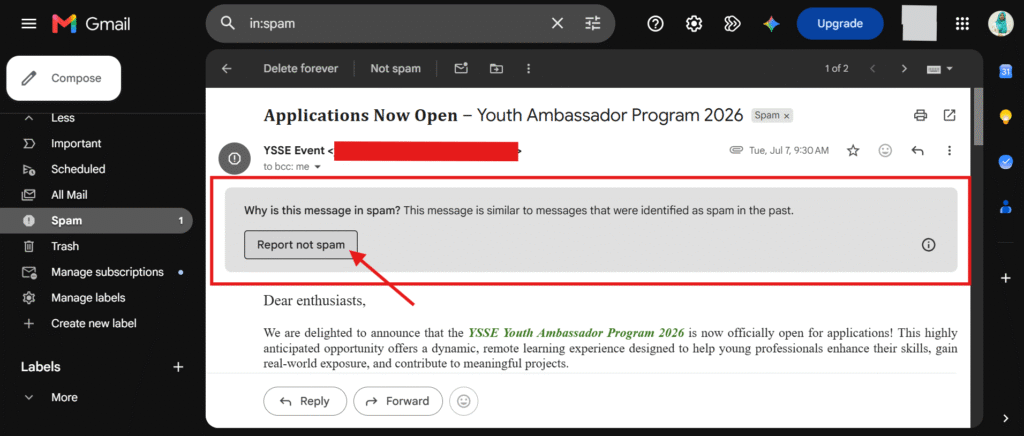
Open your spam folder, find the email, and click Report not spam (Gmail) or Not Junk (Outlook). This moves the message to your inbox right away and teaches the filter for next time.
2. Save the sender so your filter remembers them
Add the sender’s address to your contacts. Filters rarely block mail from someone already in your address book.
3. Build a permanent safe-sender rule
For a fix that sticks:
- Gmail: Search for the sender’s address, open search options, select Create filter, then check Never send it to Spam.
- Outlook: Go to Settings, then Mail, then Junk email. Add the sender to your Safe Senders list.
4. When it’s out of your hands
If you’re on a company Google Workspace or Microsoft 365 account, individual settings sometimes aren’t enough. An admin may need to add the domain to a Tenant Allow/Block List or set up a mail flow rule that bypasses spam filtering for that sender.
If you’ve tried everything on your end and it’s still not working, this is worth asking your IT team about.
If Your Emails Are the Ones Landing in Everyone Else’s Spam
This is the sender side, and it’s where most of the real work happens. Here’s the order to tackle it in.
1. Start with the non-negotiable: domain authentication
3 DNS records tell mail providers you’re legitimate.
| Record | What it does |
| SPF
(Sender Policy Framework) |
Lists which mail servers are allowed to send on your domain’s behalf |
| DKIM
(DomainKeys Identified Mail) |
Adds a digital signature that proves your message wasn’t altered in transit |
| DMARC | Tells receiving servers what to do if SPF or DKIM checks fail, and reports back to you |
Without these set up correctly, Gmail and Yahoo will often send bulk or commercial mail straight to spam, or bounce it entirely.
As of February 2024, Google and Yahoo require bulk senders to authenticate with SPF and DKIM, publish a DMARC record, and keep spam complaint rates low.
Set these up in your domain host’s dashboard. If you’re not confident editing DNS yourself, this is one place worth getting help, since a wrong record can block your legitimate mail too.
2. Give new domains time to build trust
A brand-new domain with no sending history looks suspicious if it suddenly sends hundreds of emails. Mail providers watch this pattern closely.
- Start with a small daily volume on a new domain.
- Increase gradually over 2 to 4 weeks.
- Keep sending consistently. Long gaps followed by a burst look just as suspicious as a sudden spike.
💡 Also Read: When a Brand Decides to Use Email Marketing
3. Keep your sender reputation clean
Reputation is built over time, based on how recipients react to your mail.
- Watch your bounce rate. High bounces signal a poor or outdated list.
- Watch your spam complaint rate. Gmail recommends staying under 0.1%.
- Check your standing with tools like Google Postmaster Tools, MXToolbox, or Sender Score.
4. Only email people who actually want to hear from you
- Clean your list regularly. Remove invalid and inactive addresses.
- Never use a purchased or scraped list. It spikes, bounces and complaints fast.
- Use opt-in signups, and consider double opt-in for extra list quality.
💡 Also Read: How Do I Develop an Email List from LinkedIn Contacts?
5. Write like a human, not a spam filter’s worst nightmare
- Avoid spam trigger words and phrases like “100% free,” “act now,” or “risk-free.”
- Skip ALL CAPS and excessive punctuation in subject lines.
- Balance text and images. An email that’s mostly one large image with little text is a common flag.
- Limit links to 1 or 2 trusted ones, and avoid link shorteners, since spammers use them to hide destinations.
6. Make it easy to leave
Include a clear, working unsubscribe link on every marketing email. A visible unsubscribe costs you a subscriber. A “mark as spam” click costs you reputation. The second one hurts far more.
7. Test before you hit send
Use seed testing: send your email to test inboxes across Gmail, Outlook, and Yahoo to see where it actually lands before your full list does. Deliverability checker tools can flag authentication or DNS issues in advance too.
A Quick Word for B2B and Cold Outreach Senders
If you’re running outbound campaigns for a business, a few extra rules apply.
- Use a separate sending domain, not your primary business domain. One bad campaign shouldn’t put your main company email at risk.
- Keep outreach volume conservative on new domains, and ramp up slowly, similar to any new domain warm-up.
- Stay compliant with CAN-SPAM and GDPR, and only contact people with a genuine, relevant reason to hear from you.
- If you’re sending at scale across multiple inboxes, rotate sending accounts to avoid patterns that look automated to spam filters.
💡 Also Read: Why Email Marketing Still Wins in B2B
This is the layer that separates outreach that gets replies from outreach that quietly disappears into spam folders.
💡 Also Read: The Ultimate Guide to Cold Emailing
A Simple Checklist to Run Before Every Send
- SPF, DKIM, and DMARC records are set up and passing
- Sending domain is warmed up, or volume is ramping gradually
- List is clean, with invalid and inactive addresses removed
- Content is free of spam trigger words and heavy formatting
- Unsubscribe link is visible and working
- Sending volume is steady, not spiking
- Spam complaint rate is under 0.1%
Run through this before any bulk or cold send. It takes a few minutes and catches most of what causes deliverability problems.
Conclusion
Getting email out of spam and keeping it there isn’t one setting you flip. It’s authentication, reputation, content, and sending habits, all working together. Miss one, and the others can’t fully make up for it.
Start with authentication if you haven’t already. Then build good sending habits from day one. The domains and senders with the best inbox placement are usually the ones that got the basics right early and stayed consistent.
If you’re running outbound campaigns and want deliverability handled as part of a broader outreach setup, that’s exactly the kind of groundwork we build into campaigns at Prospects Hive.
FAQs
1. Can a good subject line alone fix a spam problem?
No. A clean subject line helps, but it can’t fix broken authentication, a poor sender reputation, or a dirty list. Content is only one of four layers a spam filter checks.
2. How long does it take to repair a damaged sender reputation?
There’s no fixed timeline, since it depends on the provider and how badly the reputation was damaged. In general, reducing volume, fixing authentication and content issues, and rebuilding engagement gradually is the path back, rather than any quick reset.
3. Is it safe to use my main business domain for cold outreach?
It’s generally safer not to. A separate sending domain keeps your primary domain’s reputation protected in case a cold campaign runs into deliverability issues.